Windows 7

You can also visit my other blog at www.softknowledge.wordpress.com

Tips and Tricks

You can also visit my other blog at www.softknowledge.wordpress.com

How To(s)

You can also visit my other blog at www.softknowledge.wordpress.com

Downloads

You can also visit my other blog at www.softknowledge.wordpress.com

Wallpapers

You can also visit my other blog at www.softknowledge.wordpress.com

Quote of the Day

Friday, March 25, 2011

Microsoft Word 2007 - Reference Tab

Microsoft Word 2007 - Reference Tab
 
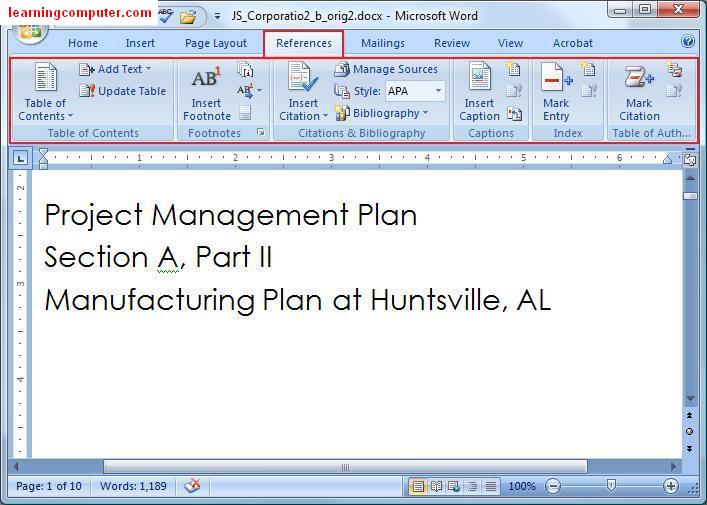
The References Tab on Microsoft Word 2007's new ribbon offers a quick way to enter your document sources, citations and choose a style like APA, MLA etc. On the References tab you will find things like Table of Contents, Footnotes, Citations & Bibliography, Table of Figures, Captions, Indexes and Table of Authorities.

Let us take a look at what the References Tab has to offer. Here is a screen shot of what it looks like.


In Microsoft Word 2007, creating a Table of Contents is really easy. One thing you need to make sure is that you type your document using one of the heading styles for the items that need to be included in the Table of Contents.

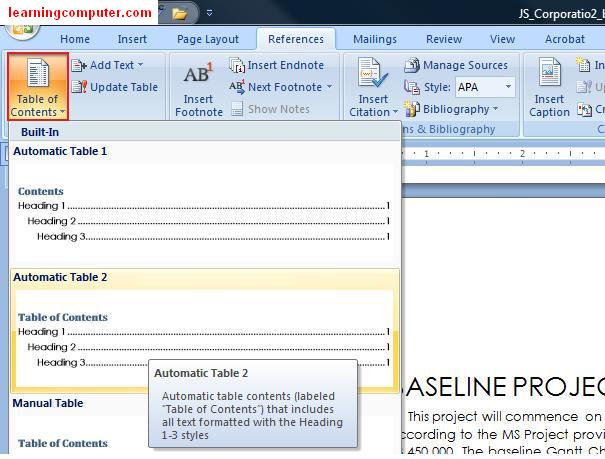
Let me show you this by example. For my project management plan report, I have created nine different sections with Headings. However I have not had the chance to create the Table of Contents just yet. I will do that next. Click on the Table of Contents command in Table of Contents group under the References tab, then click on the drop down button. It will give you built-in menu of options to choose from. From that list, choose automatic table 2.


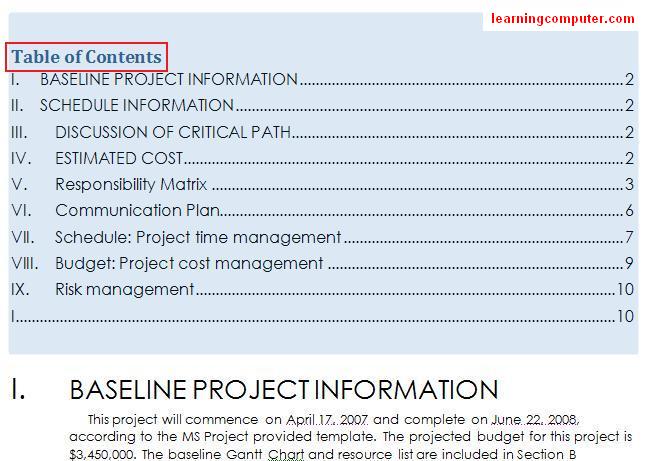
After I went through the above mentioned steps, Microsoft Word 2007 generated a nice Table of Contents as shown below. Now when you need to browse to a specific section, all you need to do is Ctrl + click the section in Table of Contents and it will take you there directly.


Footnotes and endnotes are an easy way to direct the reader of your document to supplemental information generally located at the end of a page. You can insert the Footnotes and endnotes using the Footnotes group in the References Tab. This is illustrated below.


Let's say I want to add a footnote in my schedule information on Daw project plan report, something along the lines of an estimated completion date. I select my insertion point and right after section B and then click Insert Footnote. Word will add a 1 and then move the cursor to the end of the page. I then insert my necessary text and that's it, we just inserted a footnote to our page.

The screen shot will explain this, the small red rectangle is my insertion point and the large red rectangle has the actual footnote text.


When your document contains someone else's work, this typically needs to be cited for reference. Adding such references enables the readers to identify the source information. Using Microsoft word 2007, you can easily insert citations and references in your paper. Let us review the steps involved in this process next.

The first thing you need to do is select a standard style for formatting your references. You can do this by selecting the style command on the Citations and Bibliography group in Word 2007. When you click on the drop down, you will get a list of available styles.

We will choose APA for our citations as shown by the screen shot below.
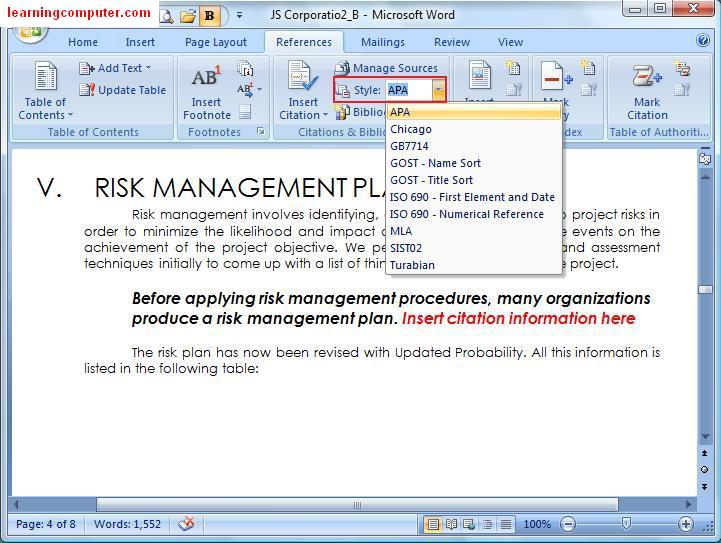


We will be adding citations to the Risk Management Plan area. Notice in the screen shot above, I have added the quoted text in bold. I have also added the citation location indicated by red. Go ahead and select Insert Citation command and then choose add new source.

Here is what it looks like.


Microsoft word 2007 will launch the Create Source dialog box as shown below. This is where you will need to enter all the information regarding your citation. As you can see, I have entered the pertinent information including offer, title, publisher etc. Finally I hit OK to close the dialog box.


This will add an inline citation right next to the quote and also add the reference to the bibliography in our report. Notice in the screen capture below, we now see the author's name in addition to the year of the published book.


Next when I try to insert another citation and select the insert citation command, notice that the first citation is already included in the list. I can use this one again for a separate quote as highlighted in bold shown below.


I can also review all my sources by clicking on the Manage Sources command and go in the Citations and Bibliography group. You can organize the list of sources, sort them by different filters and modify them if you like.

Here is a screen shot of the Source Manager.


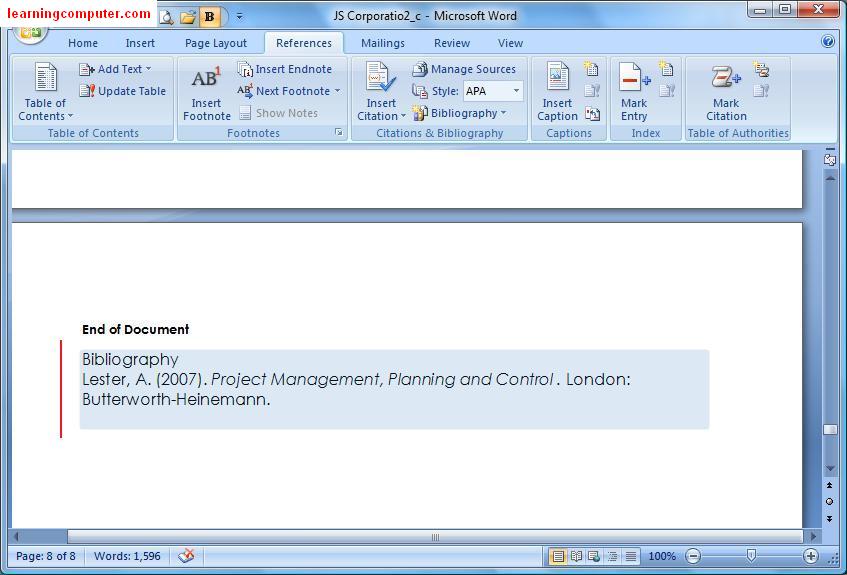
The last thing I need to do at this point is to add the bibliography at the end of my document. Let me show you how to do that. You can browse to the end of the document and select the insertion point. Next you need to select bibliography command as shown below. You will need to select one of the built-in choices from the drop down. Here we are selecting Bibliography.
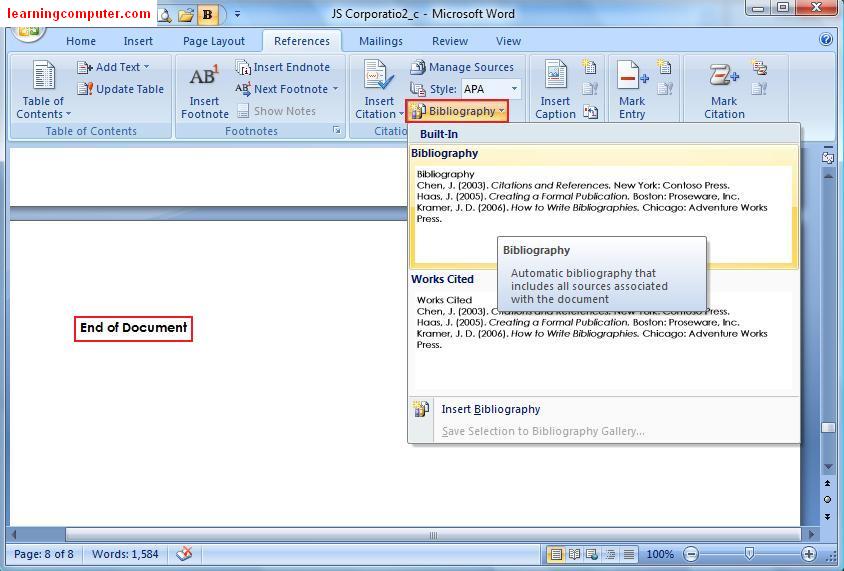


This will go ahead and add a nice bibliography section to your document according to the style you picked. We have shown the bibliography section from our report in the figure below. Notice that it took care of formatting and the order in which the different items should appear, very cool indeed!


If your report has a lot of pictures or figures in it, it may be beneficial to have a Table of Figures in it. You can do this by simply inserting a caption which really is a pointer to the underlying object. My Project plan has at least two figures that I would like to be part of a Table of Figures. So how do I do that?

I select my first figure and then click on Insert caption command in the Captions group in the References Tab in Microsoft word 2007. Here is a screen shot of what I'm talking about.


When I did the above steps, I got the Caption dialog box. I went ahead and entered some more textual information for figure one. In this case I am calling it a Work Breakdown Structure (WBS) which is a project management term.

This is shown below.


I repeat the above steps for the next two figures in my project plan report, a Communications Plan and a Gantt chart. After I am done, I click on Insert Table of Figures command on Captions group.

This launches the Table of Figures dialog box as shown below. I am going to leave the default settings and click Ok.


This generated a professional looking Table of Figures section in my project planned report. From within the table of figures, I can simply choose the figure and then do Ctrl + Click to follow the link to the target object.

I have included a screen capture for your review.


You can also create an index using the Reference Tab. The index includes list of topics in your document along with the pages that they are on. You have to write the name and cross reference for your index. We have included a screen capture to show you how to insert an index.


Finally you can make a list of all the cases, statutes and authorities in your document. You can do this by inserting a table of authorities. Here is a screen shot of what it looks like.


Wednesday, March 23, 2011

Get Paid to Read Emails

Still Reading Commercial Emails For Free? 


Receive Emails On Topics That Interests You And Get Paid For It!
If you have access to your own email account, you can get paid. Refer others and get paid up to two levels.

Hits4Pay is one of very few highest paying advertising program in the industry.

Signup for free and receive $10 as a Free Reward:


Microsoft Word 2007 - Page Layout Tab

Microsoft Word 2007 - Page Layout Tab


The Page Layout Tab lets you control the look and feel of your document in Microsoft Word 2007. You can apply a global design to your document by using one of the available themes and color schemes. You can also change the document orientation, page size, margins, indentation, line spacing and paragraph settings.

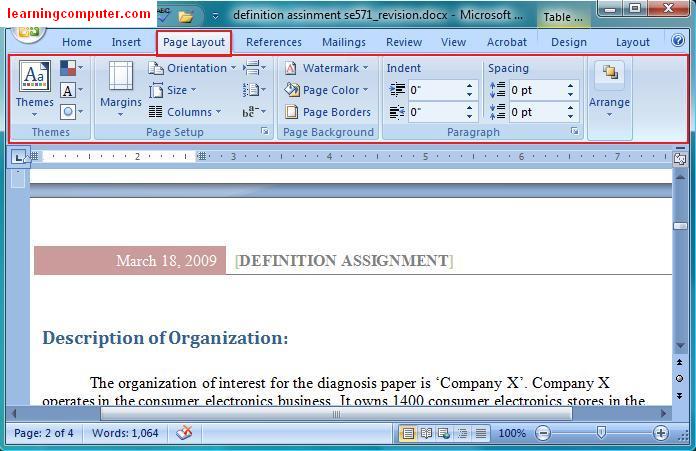
When you click on the Page Layout tab, this is similar to what you would see.


The first thing we are going to discuss is working with Themes. Themes are pre-defined and let you change the entire design using a combination of colors, font styles and formatting effects. Themes in Microsoft Word 2007 won't apply to the text if you don't have a style in place.

First you will need to use the Home tab to pick one of the Styles options. You can also click Change Styles and select a Style Set for the whole document. Since themes are set to work with the styles used in a document, you need to choose a style for all your headings, sub headings, and so forth.

Using this feature I was able to change my entire document to "Metro" theme. As I hovered over it, I was able to see a "Live Preview" on the right side. Note that the changes were only applied to the Header section and section headings. This is shown in the screen shot below:


The Theme did not affect my document text as it did not have a style applied to it. When I selected the heading, "Description of Organization" and browsed to the Home Tab, I did see that Heading 1 style had been applied to it.

This is shown as follows.


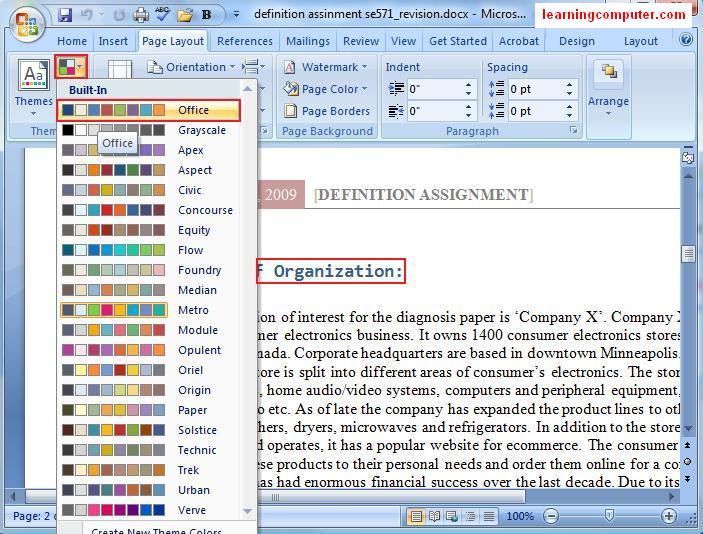
I don't know about you, but I am not a big fan of the bright green color for my headings. I can easily switch this by using the Built-In font colors under the Themes group. After you select this command, you will get a drop down list of several choices. I am going to select the Office color scheme which will switch the heading to blue. This is a fine color choice.

This step is shown in the screen capture below.


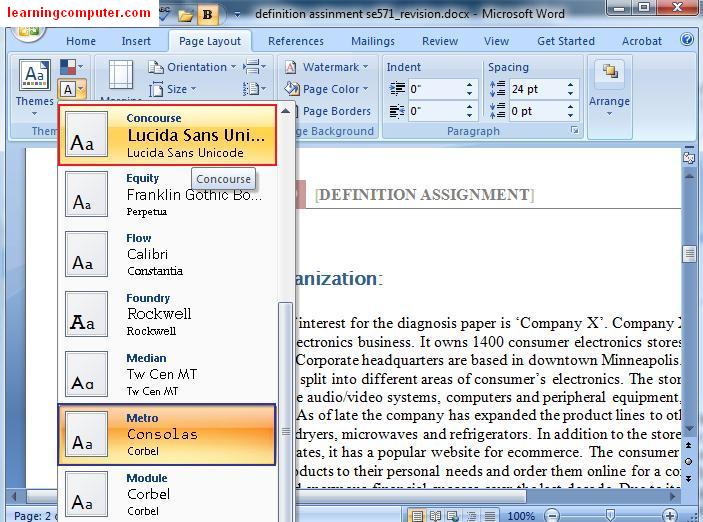
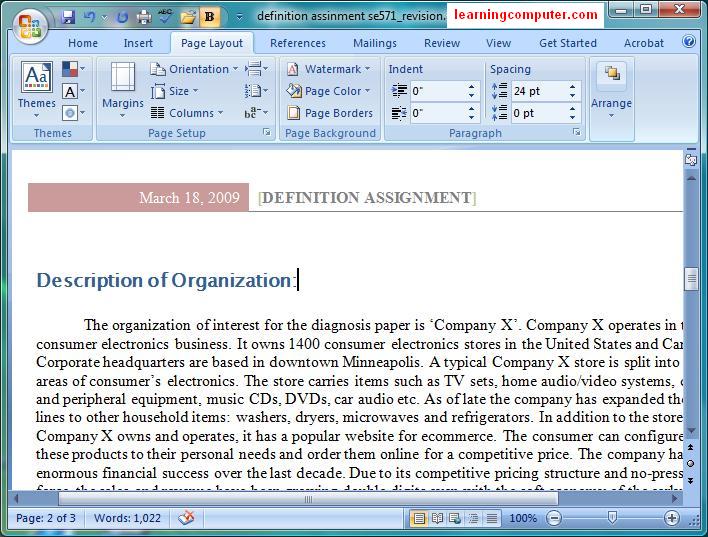
The last change I am going to make is to apply one of the Theme Fonts. This will leave the color scheme in place and just change the fonts. I will switch from Metro (blue rectangle) to Concourse (red rectangle) as shown in the next figure.


Next we will move on to the Page Setup group under the Page Layout Tab in Microsoft Word 2007. Using this tab, we can modify the structure layout of our document with details like margins, page size, orientation, line numbers etc.

I would like to modify the Definition Assignment document to use the Narrow margins instead of the Normal one. This will use more real estate on the page and trim 0.5 inch around all the borders. Here are the necessary steps shown by red rectangles.


When I did this, my document was updated using the Narrow margins. Here is the output from the action. I like the changes I have made so far so I will go ahead and Save the document. Like they say, "Save early, save often!"


Next what if you were trying to print address labels and needed to select a different paper size? No problem. From the Page setup group under the Page Layout tab, select Size and then Envelope #10. Caution: remember to feed the proper paper size in the Printer as well for this to work correctly in Microsoft Word 2007.

Here is a screen shot of what this should look like on your computer.


I really like this next feature. Currently I have a report that I am working on, but what if I was actually working on a newsletter or flier? In that case maybe I would want to split the text into two or more columns. Using the columns option in Page Setup group, you can do just that. Select Columns command and then choose Two.


After you have made the above selection, Microsoft Word 2007 will split the text in the report to two columns. It takes care of the formatting, margins, spacing and everything else automatically!!

The image below shows an output from this command of splitting a document into two columns.


Another common task is to use hyphens in your document. This conserves space and gives the document a more professional look. You can enable this automatically by using Hyphenation command under the Page Layout Tab.

A screen shot is as follows. Notice I have also shown you how to insert continuous line numbers here. This command is right above the Hyphenation button. This functionality could be useful if you are working on a legal document.


The hyphenation will split long words into two lines as shown below in the right colored rectangles


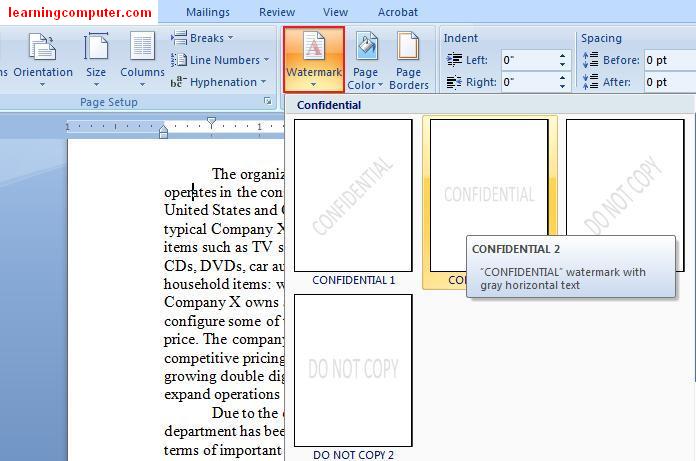
Let's move on to the next group, which is the Page Background. Here you can select Watermarks, Page Colors and Borders. For confidential or privacy type documents, you may want to use a Watermark. You can achieve this by selecting Watermark and picking one of the menu choices as shown below. Microsoft Word 2007 makes this a breeze by providing you Built-In options to do this task.


What if you wanted to add a little color to my document? You can select Page Color option under the Page Background group. How about bright Green, a little too bright I think!


The Page Layout Tab lets you also control indentation in your document. Indentation determines the distance of the paragraph from either the left or the right margin. I found a quotation in my document and this is a perfect candidate for indentation.

I am going to use 0.5 inch indent from the left and right side. Here is a screen shot of this action in red arrows.


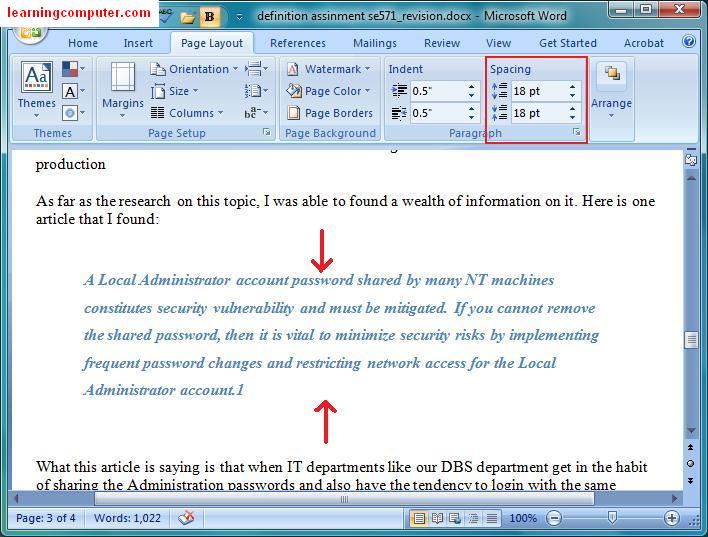
The last option I want to discuss is the Spacing before and after paragraphs. We will use the same text as the previous example. The quote seems to be a little too close to the regular document text. I would like to add 18 pt (point) spacing to the top and bottom of this quote. I can easily do this by using the Spacing option under the Paragraph group in Microsoft Word 2007.

Shown below in red arrows is the affect of making this change.


Microsoft Word 2007 - Insert Tab

Microsoft Word 2007 - Insert Tab

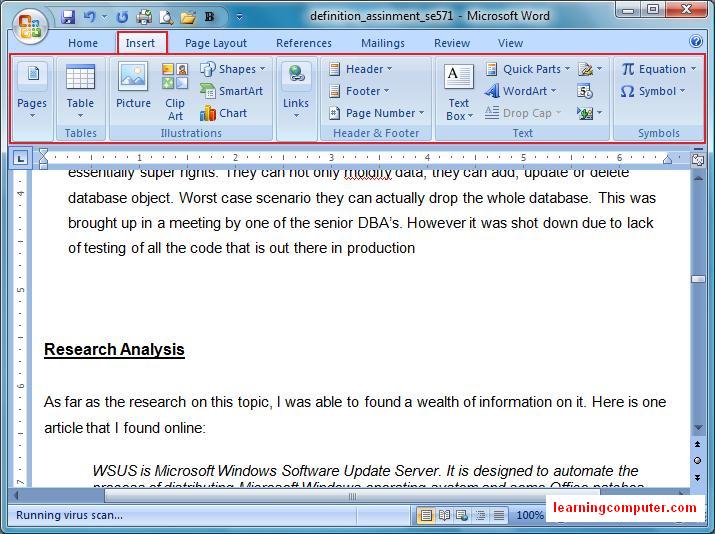
The Insert Tab is right next to the Home Tab in Microsoft Word 2007. This tab has a lot of useful features that will let you insert things like pictures, clip art images, shapes, SmartArt graphics, charts and a host of other items. Let us review a few of these features in this exciting new tab.

Before we do that here is a screen shot of the insert tab shown below.


Today we will be working with several different documents to show you the functionality in the Insert Tab. A common task in Microsoft Word is to add a Page Break. For this practice we will use the definition assignment document as illustrated below.

We would like to add a page break right before the Research Analysis section. In order to do this in Microsoft Word 2007, you can select the Insert Tab and then select the Pages group and then choose Page Break. Here is a screen shot of this action.


After performing the above mentioned action we were able to insert a page break right before the Research Analysis section. This is highlighted by the red rectangle in the following figure.


Next we are going to look at a Meeting Agenda for more practice with the Insert Tab in Microsoft Word 2007. We have some basic information about the meeting like date, time and presenter in the beginning of our document.

We need to add at least two more things, the schedule and the company logo as highlighted in yellow.


One quick way to add a meeting schedule in Microsoft word 2007 is to use a table. Let us see how we can achieve this task next. Select the Table command from the Insert Tab which will launch the Insert Table functionality in Microsoft Word 2007. It will let you pick the number of columns and rows of the desired table in your document. As you drag your mouse over the highlighted area, you can select the rows and columns that you would like.

Here I have chosen a 2x5 table for my meeting agenda. Also notice that as you drag the mouse you will get a live preview of your table in your document, very cool! This is shown below in the screen shot.


Before we go ahead and enter the data, I want to talk about Contextual tabs. These are special tabs that appear only when certain objects are being used such as a table or a picture. The idea is to keep them hidden until the object is active, leading to a more efficient work flow and less cluttered area.

The Table object has two such contextual tabs: design and layout. The design lets you control things like table styles, borders and shading. This tab is illustrated below in the screen capture.


The next contextual tab related to Tables is the layout tab. This tab will actually let you modify the structure of the table including rows and columns plus alignment and cell size. This is shown below with all the available options.


Once the table is created, you can start entering the data as you wish. In my case I went ahead and entered the training schedule times and information shown as follows.

I also unchecked the header row and the first column check boxes on the Ribbon shown in red squares. I also clicked on the More command to choose a different gallery style for my table.


WOW!! look at all these predefined, ready made table styles available in Microsoft Word 2007. These styles use a combination of color schemes, font properties and graphical effects. As I hover my mouse over the styles, I get a preview of what my table will look like if I select that option.

I like the Burgundy color so I'm going to choose "Colorful Shading - Accent 2". Here is a screen shot.


My first column is taking way too much space so I would like to move the border a little to the left. I can do this by selecting the first column border and moving it left.

This is shown by the red arrow in the screen shot below. Notice the dotted line will be the new location for the column border.


The final touch that I want to give to my table is borders on all sides and in between cells. I'm going to select the Borders command in table styles group under the Table Tools Tab in Microsoft Word 2007. This will show a drop down menu where I will choose all borders.

This is illustrated below in the screen shot.


The meeting schedule is now complete. Let us take a look at the end product shown below. Very Nice and professional looking!


Let's switch gears and insert a company logo into our document. I would like to use a free Clip Art image for this step. I am working on a sales meeting so I would like to add a picture of cash or money in my document. I can use the Clip Art feature of Microsoft Office 2007 that will let me insert free images and graphics in this document.

I clicked on Clip Art command on the Illustrations group to start the process. Here's what it looks like in my document.


The Clip Art dialog box launches on the right side of my document. I will type business in the Search for text box and hit Go. Looks like it found a currency symbol, I like it for now. I will go ahead and choose this one for my company logo.

This is shown below the screen capture.


After you enter the image, Microsoft Word 2007 will launch the Picture Contextual Tools tab shown as follows.

This tab will let you enhance the image further if you like. You can do things like change styles, borders, colors, sizes and other picture effects. I would like to make the company logo a little bit bigger before I mess with any other effects.


I can do modify the image size by grabbing the sizing handles on the bottom right corner of the image, as shown by the blue arrow. Using the mouse, I can drag the picture to increase the size.

A screen shot of the Picture Tools tab and the updated image is as follows.


What else can I do to make the image stand out more? Adding a border to my company logo may enhance the effect. So I will click on the Picture Styles group under the Picture Tools tab. I will select the drop down arrow to launch gallery of styles. I will choose the black Simple Frame for my Logo.

I've included a screen shot of this.


I'm ready to print my meeting agenda now as I have added the necessary elements into my document. It is always a good idea to do Print Preview before printing any document. So when I did that, I got the following preview. I think this looks awesome!!


The last thing I wanted to show you is Inserting Header section for my Definition Assignment project. I will switch to the other document for this exercise.

Headers and footers are important items to add to your documents to give them a professional look and feel. A header could have information on the document title, author name, version number etc. while a footer is useful as it contains things like Page Numbers and Dates.

In order to create a Header section, click on the Insert Tab and select Header in the Header and Footer group. This will launch the built-in Header gallery as shown below.


I will pick the Austere style which will give me a nice color scheme with Date and Title layout for my header. After I made the selection, Microsoft Word 2007 inserted the header block and I was prompted to enter the Date and Title information. It was nice to get a date time picker for the date. I selected today's date, entered the title of my document and voila!

I have included a screen capture here also:


Notice that I was given a Header & Footer Tools tab above where I could have further tweaked the settings.

I am actually happy with my existing layout so I am done at this point. Now this header will be visible on the top of all the pages in my definition assignment report.

When I did a Print Preview, I was able to see the document and it looks like the one below.