Windows 7

You can also visit my other blog at www.softknowledge.wordpress.com

Tips and Tricks

You can also visit my other blog at www.softknowledge.wordpress.com

How To(s)

You can also visit my other blog at www.softknowledge.wordpress.com

Downloads

You can also visit my other blog at www.softknowledge.wordpress.com

Wallpapers

You can also visit my other blog at www.softknowledge.wordpress.com

Quote of the Day

Showing posts with label Information. Show all posts

Saturday, November 24, 2012

Use KeyRocket to become a master of keyboard shortcuts

Use KeyRocket to become a master of keyboard shortcuts

Use of keyboard shortcuts can incredibly improve your productivity but it’s difficult to find all the keyboard shortcuts at one place and remember all of them at once. KeyRocket helps you to learn new shortcuts as you do your work. For example if you are working in Word and using your mouse every time when you need to make some text bold. It will notice and suggest you the keyboard shortcut for this. 

It also allows you to search shortcuts. Suppose you remember a shortcut combination but don’t know what is it used for, you can use KeyRocket’s library to search shortcuts. KeyRocket silently sits in the background and will suggest you through notifications whenever it has any suggestion. Currently it has shortcut suggestions for Windows Explorer and Microsoft Office suite. 

It supports Windows XP, Vista and Windows 7 operating systems. You can download it using the link given below. 

Click here to download KeyRocket

Sunday, September 30, 2012

HTTP Error Codes and Their Meaning

HTTP Error Codes and Their Meaning

        While surfing the net we always get some HTTP Errors. These Error codes are crucial for troubleshooting various issues. You can see these error codes in various logs. If you can interpret the correct meaning of the http error code, you can decide the places to look at for resolving this issue.

       So here are they. All the error codes with their meaning. Hope this will help a lot many of you.


       The client should be prepared to receive one or more 1xx responses before receiving a regular response. 
 
  • 100 - Continue. 
  • 101 - Switching protocols.

2xx - Success

This class of status codes indicates that the server successfully accepted the client request.
 

  • 200 - OK. The client request has succeeded.
  • 201 - Created.
  • 202 - Accepted.
  • 203 - Non-authoritative information.
  • 204 - No content.
  • 205 - Reset content.
  • 206 - Partial content.
  • 207 - Multi-Status (WebDay).

3xx - Redirection


The client browser must take more action to fulfill the request. For example, the browser may have to request a different page on the server or repeat the request by using a proxy server.

  • 301 - Moved Permanently
  • 302 - Object moved.
  • 304 - Not modified.
  • 307 - Temporary redirect.

4xx - Client Error


An error occurs, and the client appears to be at fault. For example, the client may request a page that does not exist, or the client may not provide valid authentication information.

400 - Bad request.
401 - Access denied. IIS defines several different 401 errors that indicate a more specific cause of the error. These specific error codes are displayed in the browser but are not displayed in the IIS log
:

  • 401.1 - Logon failed.
  • 401.2 - Logon failed due to server configuration.
  • 401.3 - Unauthorized due to ACL on resource.
  • 401.4 - Authorization failed by filter.
  • 401.5 - Authorization failed by ISAPI/CGI application.
  • 401.7 – Access denied by URL authorization policy on the Web server. This error code is specific to IIS 6.0.
403 - Forbidden. IIS defines several different 403 errors that indicate a more specific cause of the error:
  • 403.1 - Execute access forbidden.
  • 403.2 - Read access forbidden.
  • 403.3 - Write access forbidden.
  • 403.4 - SSL required.
  • 403.5 - SSL 128 required.
  • 403.6 - IP address rejected.
  • 403.7 - Client certificate required.
  • 403.8 - Site access denied.
  • 403.9 - Too many users.
  • 403.10 - Invalid configuration.
  • 403.11 - Password change.403.12 - Mapper denied access.
  • 403.13 - Client certificate revoked.
  • 403.14 - Directory listing denied.
  • 403.15 - Client Access Licenses exceeded.
  • 403.16 - Client certificate is untrusted or invalid.
  • 403.17 - Client certificate has expired or is not yet valid.
  • 403.18 - Cannot execute requested URL in the current application pool. This error code is specific to IIS 6.0.
  • 403.19 - Cannot execute CGIs for the client in this application pool. This error code is specific to IIS 6.0.
  • 403.20 - Passport logon failed. This error code is specific to IIS 6.0.
404 - Not found.
  • 404.0 - (None) – File or directory not found.
  • 404.1 - Web site not accessible on the requested port.
  • 404.2 - Web service extension lockdown policy prevents this request.
  • 404.3 - MIME map policy prevents this request.
  • 405 - HTTP verb used to access this page is not allowed (method not allowed.)
  • 406 - Client browser does not accept the MIME type of the requested page.
  • 407 - Proxy authentication required.
  • 412 - Precondition failed.
  • 413 – Request entity too large.
  • 414 - Request-URI too long.
  • 415 – Unsupported media type.
  • 416 – Requested range not satisfiable.
  • 417 – Execution failed.
  • 423 – Locked error.

5xx - Server Error

The server cannot complete the request because it encounters an error.
 

500 - Internal server error.
  • 500.12 - Application is busy restarting on the Web server.
  • 500.13 - Web server is too busy.
  • 500.15 - Direct requests for Global.asa are not allowed.
  • 500.16 – UNC authorization credentials incorrect. This error code is specific to IIS 6.0.
  • 500.18 – URL authorization store cannot be opened. This error code is specific to IIS 6.0.
  • 500.19 - Data for this file is configured improperly in the metabase.
  • 500.100 - Internal ASP error.
  • 501 - Header values specify a configuration that is not implemented.
  • 502 - Web server received an invalid response while acting as a gateway or proxy.
  • 502.1 - CGI application timeout.
  • 502.2 - Error in CGI application.
  • 503 - Service unavailable. This error code is specific to IIS 6.0.
  • 504 - Gateway timeout.
  • 505 - HTTP version not supported.

Tuesday, November 22, 2011

What is 32 Bit and 64 Bit - Explained


What is 32 Bit and 64 Bit - Explained

In one context, 32-bit and 64-bit refers to how a CPU (computer processor) handles information. These terms also indicate the number of bits that comprise a single data element (for example, a pixel in an image). In that case, when dealing with resource hogging data like images, audio, or video, there is a distinct advantage to a 64-bit system. However, when writing emails or text documents, the benefits of 64-bit may be less apparent.

What is a bit?

A bit (short for binary digit) is the smallest unit of digital information, represented by either 0 or 1. Arranging a series of bits in sequence creates a binary math language that the processing chips can understand. As a result, CPUs are identified by their ability to process these sequences (32-bit or 64-bit). Eight consecutive bits in such a sequence equals a byte (short for binary term). Large numbers of bytes are then combined to create kilobytes, megabytes, gigabytes, terabytes, etc.

Not confusing enough?

The terms, 32-bit and 64-bit indicate the width of the registers, which are storage areas within the computer. The registers can contain either the address location in the computer memory where data is stored, or the data itself. All computer data is processed using information represented in these registers.

Each instruction (the most basic computer command) can process the number of bits indicated in the registers. So, a 64-bit machine processes a 64-bit width register with each instruction. Likewise, a 32-bit machine processes a 32-bit width register per instruction. While it would seem that a 64-bit processor would naturally be faster, the number of instructions executed per cycle (the fundamental unit of time measurement in a device) indicates actual processing speed, so that may not always be the case.

It’s the combination of hardware and software elements which make up the computer architecture that determines processing speed. This will be discussed in part two of this series, where we’ll take a more in-depth look at processors, memory, and how hardware and software interact to improve (or–if not correctly balanced–reduce) overall performance.

Speed

Processing speed, referred to as clock speed, is generally measured in megahertz (MHz) which amounts to one million cycles per second, or gigahertz (GHz) equaling one billion cycles per second.

A computer’s architecture is a significant contributor to that processing speed, so CPUs (computer processors) with the same clock speed may not perform functions at the same rate. While a fixed number of clock cycles is required for each command (instruction), a faster clock will execute more instructions per second, and the machine will perform those instructions more quickly.

However, clock cycles (or clock ticks), like so many other terms in this bewildering lexicon jungle, is a term with multiple meanings. On one hand, a clock cycle is as described above, the relative speed of a processor, but it also refers to the internal system clock, which always runs at 66 MHz (66 million clock ticks per second). So, more powerful CPUs can execute instructions more rapidly than their less sophisticated counterparts, while still displaying the same number of units per cycle.

Memory

While the clock speed of the CPU is the primary indicator of processing capability, RAM (Random-Access Memory) also plays a significant role in performance. When a CPU requests information from the hard drive, it’s put into RAM, where it can be accessed with greater efficiency. But, if the memory (RAM) isn’t sufficient, the information may have to be returned to the hard drive before the next request can be answered, thereby slowing overall performance.

Hardware and Software

Hardware and drivers (the software that controls the hardware) must match the device’s system type, and this should be a primary consideration when upgrading a 32-bit system.

What all this means is that, with each operation, 64-bit processors can handle bundles of information that are twice the size of those processed by 32-bit systems, and the speed at which these bundles are delivered is determined by the overall balance of system resources (RAM, processors, etc.). In researching this article, I was directed to an analogy of a two lane highway that had been converted to a four lane highway to relieve bottlenecks. But, while that’s a good comparison, the benefit is more than just a method of efficiently moving traffic. 64-bit is not just an increased amount of data per bundle, it’s also higher quality data, as images, audio, and video files comprised of 64-bit elements are richer, with more depth and texture, than those made up of 32-bit elements.

The next and final part of this article, How to Determine if a System is 64-Bit Capable, will explain how to tell whether a system is 32-bit or 64-bit, and whether upgrades are possible (or practical).

I hope this has been as enlightening to read as it was to write.

Sunday, November 20, 2011

Facebook Login Notifications

Facebook Login Notifications

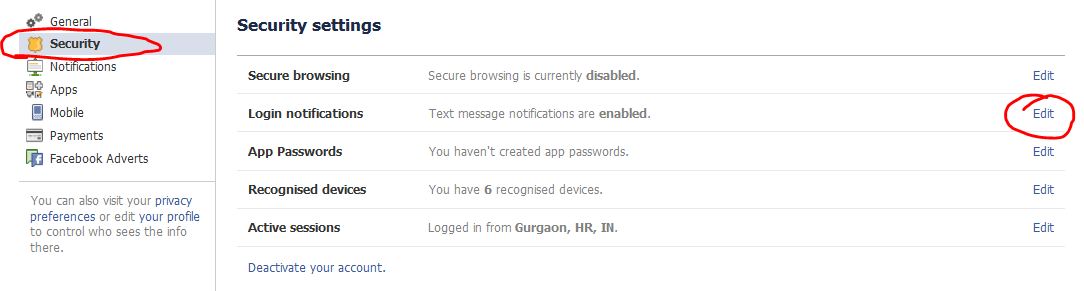
Hey, Facebook users – after a very long time I have again come to my place. My Blog. Was a bit busy settling my second career and with Facebook. But I am back now. Did you know that you can set up India's favourite social networking site to send you an e-mail or even a text message if anyone tries to access your account from a new device?

It’s great for that extra layer of security – and I highly recommend it!

Here’s how:

While logged in to Facebook, click the arrow next to your name, then Account Settings. 
 
 
Once at the Account Settings control panel click the security category off to the left, then click Edit. 
 
Now simply choose how you’d like to receive a notification when/if your account is accessed from a new/different computer. Click Save Changes when you’re finished!


Monday, May 9, 2011

Web Browser Navigation

Shift+Space Web Browser Navigation

Sounds like a cool new form of space travel, doesn’t it? Unfortunately, (or fortunately, depending on how you look at it) it’s just a trick to make navigating pages in your web browser a little easier.

So, instead of using the Page Up and Page Down keys all the way on the other side of your keyboard, do this:

Press your Space Bar to go a page down.

Press Shift+Space to go a page up.


Quick navigation, without traveling all over the place! Give it a try!

Get Connected with me

Get Connected with me


Here are few links to get connected with me


My FaceBook Page : http://adf.ly/1TX5p

My Blog : http://adf.ly/1TX1w


My WOrdpress Blog (Softknowledge) : http://adf.ly/1TX45


Mallabhum ( My Business): http://adf.ly/1TX3E


Adf.ly : http://adf.ly/?id=457859

Sunday, May 1, 2011

Successor of Windows 7 - Windows 8

Successor of Windows 7 - Windows 8


Windows 8 Milestone 1 is now available to download on torrents. Please note that this is not the Official version, its just a leak.

Developing of Windows 8 has jumped into a phase of Milestone 3. And Automatically led to even wave of new leaked screenshots of the system, which appear in the network and reveal newer features of the Windows 7 successor. In addition to the Aero Lite interface that was reveled before and now the website MSWin.me has published the pictures of the controls, which will go to lighter Aero theme of Windows 8.


Much more interesting feature that is included is the news about a module that is responsible for changing the language of the system. With this feature you are allowed to change language in Windows. Sources reveal the significant changes in the module. First Changing the language will be much simpler, and Microsoft company will enable this function at a fast location. Microsoft’s new window is expected in the next year. And the first beta version of Windows 8 is expected to be launched by end of this year.
 
Download Details (Search It from any torrent site and download)


File Name: 6.1.7850.0.winmain_win8m1.100922-1508_x86fre_client-enterprise_en-us.iso
Size: 2.45 GB (2,637,101,056 bytes)
SHA-1: DCA69DF6074BCA8B5DBA5C8D6D030D53CB6D82C
MD5: EA2DCFADA6BBA517A0A0649D15E1EB3D
CRC32: 32EB1881
 

Sunday, March 13, 2011

7 Things You Didn't Know About VLC

7 Things You Didn't Know About VLC 

1. Rip DVDs: 

VLC includes a basic DVD ripper. You probably would never use it when there are better DVD rippersavailable, but it helps to know that you can in fact, get a decent quality DVD rip with VLC. To rip a movie follow these steps: Go to the Media menu and choose Convert–>Save. Click on the Disc tab. 

Here you can adjust the Starting Position and rip only specific titles or chapters. 

Enter file name making sure to end with .MPG, and start ripping. 

Click Save. 

2. Record videos: 

With the new VLC, you can record videos during playback. The record button is hidden by default. To see it, click on View–>Advanced Control. The record button will now appear. Clicking on the button while playing a movie or video will start recording. Clicking again will stop recording. 

3. Play RAR files: 

Do you know VLC can play videos zipped inside RAR files? They play like normal video files and you can even use the seek bar. If the RAR file is split into several files, no problem. Just load the first part (.part001.rar ) and it will automatically take the rest of the parts and play the whole file. 

4. Play in ASCII mode: 

VLC media player has an amusing ability, to playback movies in ASCII art. To enable ASCII mode, open VLC media player and click on Tools –>Preferences. Open the section “Video” section and under “Output” select “Color ASCII art video output” from the drop down menu. Save it. Now play any video file to enjoy the ASCII art. 

5. Listen to online radio: 

VLC includes hundreds of Shoutcast radio stations. You just need to enable it through Media –>Services Discovery –> Shoutcast radio listings. Now, open the Playlist and browse through the stations. 

6. Convert Audio and Video formats: 

In VLC you can convert video and audio files from one format to another. Several different formats are supported like MP4, WMV, AVI, OGG, MP3 etc. To access the converter: 

* Go to Media –>Convert/Save. 

* Load the file you want to convert using the Add button and click Convert. 

* Now choose the output format and output file location. 

7. Download YouTube and other online videos: 

First grab the URL of the YouTube video page. Now click on Media –>Open Network stream. Paste the URL and click Play. 

Once VLC starts streaming the video, click Tools –>Codec Information and at the bottom of the window you will see a Location box. Copy the URL and paste it on your browser’s address bar. The browser will now download the file which you can save it to your hard disk. Alternatively, you can record the video.

Wednesday, August 25, 2010

Almost Everything You Need to Know About DHCP

Almost Everything You Need to Know About DHCP

This article will help you to learn everything that you need to know as a systems administrator (or SysAdmin) about this protocol and what can you do with it.


What's DHCP? And why it's recommended to use it? Imagine that you're working as a SysAdmin for a large company with 500 desktop computers; you need to set to each desktop computer IP address, subnet mask, default gateway, DNS servers, and other network settings. How could you do that?
If you'll try to perform this task manually you're probably going to waste a lot of time on sitting on each computer 5-10 minutes, beside time, you can for example accidentally enter wrong IP address to few clients, or to type the same IP address to few clients too.
In order to solve these "problems" you can use Dynamic Host Configuration Protocol (or DHCP) in your network.
DHCP allows you  to manage the networks' IP addresses scopes and other TCP/IP settings like DNS, Default Gateway, etc. from central place, this central place called DHCP server. Beside the management, if there's any problem you don't need to run between your clients, you just need to connect to your server and to check the DHCP settings, as I mentioned – the DHCP works from central place, so if there's a problem, it's probably from the server, so you know where to go in case of problem and your saving time.
The DHCP server can provide easily IP addresses to clients automatically so you don't even need to configure and set options in the client side, all you need is to setup DHCP server, configure scope options and some other TCP/IP settings in the server side and that's it. You can provide to your clients IP addresses from the selected range that you've configured and some other TCP/IP options.
Note: DHCP in my opinion can be called "The next generation of BOOTP", because the BOOTP came first before the DHCP, and today we're using BOOTP in order to deploy operating systems by booting from the network. Beside this, DHCP was developed in order to support in large networks – something that BOOTP can't provide.

How DHCP works?

Without entering to the related technical information (DORA process) the DHCP client request from the DHCP server IP address for a while, the length of time that the DHCP client can use the dynamic IP address that the DHCP server provided can be called lease, just like the name: lease means that the client "rent" an IP address for a specific time from the DHCP server, if the client wants to continue using the specific IP address the client needs to re-assign the address by renew the lease, this will happen before the expiration time of the lease if the client is still in the network.
More in depth, the DHCP service works by using the DORA (Discover, Offer, Request and Acknowledgment) process (you can trace on the whole process using a network monitor utility):
  1. DHCPDISCOVER – The client broadcast a DHCPDISCOVER packet in order to locate a DHCP server in the network, in some cases that the DHCP server isn't in the same subnet of the client, you'll need to configure in your network devices (usually routers) a DHCP Relay Agent, in order to transfer the DHCPDISCOVER packet to the DHCP server.
  2. DHCPOFFER – The DHCP server broadcast a DHCPOFFER packet to the client which includes an offer to use a unique IP address for the client.
  3. DHCPREQUEST – The client broadcast a DHCPREQUEST packet to the DHCP server with an answer, and "asks" from the server to "rent" the unique address that the server offer to her.
  4. DHCPACK – The DHCP server broadcast a DHCPACK packet to the client, in this packet the server acknowledge the request from the client to use the IP address, and provide to the client the IP address lease and other details such as DNS servers, default gateway, etc. if the server cannot provide the requested IP address or from some reasons the address is not valid the server sends DHCPNACK packet in stand of DHCPACK, more information about DHCPNACK is under the specific subject – DHCPNACK.
Note: DHCP service uses port 67/UDP in the DHCP server, and 68/UDP at the DHCP clients.
It's recommended to check that your firewall doesn't block these ports in order to able the DHCP server and clients to communicate, and also check that your network devices supports DHCP Relay Agent in case that some of your clients are in different physical subnet.
In some cases you'll notice another DHCP messages like these:
  1. DHCPDECLINE – If the client recognizes that the IP address that the DHCP server offer to her in use, the client will generate a new request to another IP address (in the DHCPREQUEST step).
  2. DHCPRELEASE – This message is commonly in use when the client "give up" and release IP address.
  3. DHCPRENEW – This is the request packet to renew and continue "renting" the IP address lease.
  4. DHCPINFORM – The DHCPINFORM is packet that the client send to the DHCP server in order to get more details from the server, for example DHCPINFORM can be send in order to locate another DHCP servers in the network.

DHCPNACK

The DHCPNACK or Negative Acknowledgment is a packet that the server sends if the IP address is not available in stand of DHCPACK (in use on other client for example) or the address is no longer valid.
In case of DHCPNACK the client must restart the lease process in order to get an IP address.

DHCP Scopes, Exclude and Reservation

DHCP Scope is a range of IP addresses that you configure in your DHCP server as range of addresses that designed for distribution to the clients.
For example, if you set a scope with a range from 10.0.0.100-10.0.0.200, you can easily provide only from this range IP addresses to your clients.
You can also create more than one scope, but it's recommended to check that your scopes aren't duplicating one with each other's. At the scope creation process you can add some more TCP/IP parameters such as subnet mask, IP addresses lease time, router (default gateway), DNS servers, etc. so when the clients gets the IP addresses they'll get also the other parameters from the scope.
In some cases, you'll need to prevent the client using some addresses, for example if your scope is from 10.0.0.1 up to 10.0.0.100, and your servers using 10.0.0.1-10.0.0.10, you can exclude these IP addresses from the scope and exclude the DHCP to distribute them to the clients, in most of the DHCP servers this option called exclude.
Reservation is a great option if you're planning to provide specific dynamic IP address from the DHCP server to unique DHCP client. If for example in the 10.0.0.1-10.0.0.100 scope you want to provide for specific client a unique address that will be always of the client, you can easily set reservation for the client using a unique identifier – the MAC address, the MAC of Media Access Control is a unique hexadecimal physical address for network adapters.

DHCP & DNS

When you're installing DHCP server you can configure the DHCP server to set DNS updates to any DNS server that support dynamic updates. More information about the combination between DHCP and DNS you can find right here.

Active Directory & DHCP Servers

In Microsoft Windows Server with Active Directory you need to authorize your server in order to work with the DHCP service.
In the past you could install few DHCP servers – as you wish, this action occurs problems like server crashing, etc.
In the new Windows 2000 Server/Server 2003/2008 you must authorize your server in order to start the DHCP server, if there's an authorized DHCP server in the Active Directory environment and a non-authorized server trying to start the DHCP service in order to distribute IP address, the server will failed in this task and the DHCP service in the local computer will stop.

DHCP Relay Agent

DHCP Relay Agent is any kind of host (usually a router or server) that listen to DHCP/BOOTP broadcast from clients on subnets without local DHCP servers.
The DHCP Relay Agent forwards the packets from the clients and the DHCP server that sitting on different physical subnets to each other in order to supply 'connection' between the DHCP Server to the clients, and opposite (from the clients to the server).

In conclusion

DHCP is a critical "must have" network service because using DHCP helps you, as a System/Network Administrator, to manage you clients by assigning, tracking and re-assigning IP addresses.
Netanel Ben-Shushan is an IT Consultant & Trainer from Israel, who works mainly with Microsoft infrastructures, networking and information security systems. He's the creator of www.ben-shushan.net, a personal website in Hebrew with technical guides, articles, tips and tricks from the IT field.

Thursday, August 19, 2010

Ten Things You Should Know About Windows 7

Ten Things You Should Know About Windows 7

Every year, we get hit with a long drumbeat of “top 10 lists”—whether it’s the 10 worst-dressed celebrities at the Academy Awards, the 10 best ways to get in shape before spring, the 10 best ways to annoy the person in the office next to you.

At the Springboard Series, we pretty much have a one-track mind—what is in store for IT professionals responsible for desktop administration. While we might be tempted to share a couple of those weight-loss tips, it’s probably best we stick to what we know best—the top 10 things you need to know about the Windows 7 operating system.
With the Release Candidate of Windows 7 now available, we encourage you to download a version to your lab machine and begin testing your applications and devices to get to know what’s in it for you. As you begin testing, we offer this guide to the key features and capabilities in this new desktop operating system.
Here are the top 10 things to know about Windows 7:
1 - Application compatibility
The Windows Vista operating system introduced architectural changes down to the kernel level that made the OS inherently more secure than Windows XP. However, this came at a cost; many applications needed modification to function properly in a Windows Vista environment. While at this point in the lifecycle of Windows Vista (post Service Pack 1) most applications are now compatible, deploying Windows Vista into the desktop environment early on required some “heavy lifting” and creative shimming—not to mention a few late nights.
Windows 7 is built on the same basic architecture as Windows Vista, so most applications will retain their compatibility between these operating systems. This alone will make adopting Windows 7 much less challenging than migrating from Windows XP to Windows Vista. If your organization is like many that are still standardized on Windows XP, you will need to transition to updated versions of your key applications, but the availability of Windows Vista–compatible versions and well-proven shims will make this task more manageable.
2 - Hardware compatibility and requirements
Much like the application compatibility issues, adopting Windows Vista early-on was a challenge because of the higher system requirements—such as RAM and graphics. On the flip side, Windows Vista provides manageability and security that just isn’t available on Windows XP, and with more capable hardware, Windows Vista is able to perform a number of useful functions that improve productivity (such as Windows Search 4 and the Windows Aero desktop experience) and increase PC responsiveness (the ReadyBoost technology launches applications more quickly by maintaining a portion of frequently used applications in memory).
Windows 7 was designed to perform well on the same hardware that runs Windows Vista well, while delivering additional performance and reliability improvements. The design team for Windows 7 had a specific focus on the fundamentals—as well as maintaining compatibility with existing applications and hardware. In operation, you will find that Windows 7 boots faster and has a smaller memory footprint than Windows Vista.
3 - Better Together with Windows Server 2008
One of the key benefits of the modern operating system is that Windows 7 and the Windows Server 2008 operating system share a common code base, and are maintained with a single servicing model. This servicing model means updates and security updates are shared across both client PCs and servers, simplifying the process of maintaining an up-to-date infrastructure.
In addition, environments with both Windows Server 2008 and Windows 7 unlock capabilities that extend functionality and help ensure a more secure environment. One example is DirectAccess, which allows management and updating of remote mobile PCs that are connected to the Internet, even when they are not connected to the corporate network. This capability helps ensure that remote users receive security patches on a timely basis, and allows IT to update configuration setting via Group Policy. For the end user, DirectAccess allows access to locations on the corporate network without using a virtual private network (VPN) connection. (In addition to Windows Server 2008 R2, DirectAccess requires IPSec and IPv6 implementation.)
4 - Extend data encryption to removable media
News reports are rife with stories about companies losing control over sensitive information. In some industries, this is an issue with grave legal implications, while in other situations the issue is inconvenience. Regardless, smart compliance policy dictates that sensitive information be safeguarded in the event of a lost or stolen laptop. Further, preventing sensitive information from being removed from corporate resources is a pillar of effective compliance management.
Windows 7 includes BitLocker technology, first implemented in Windows Vista, which now provides full encryption of all boot volumes on a PC; along with introducing BitLocker To Go that offers data protection on portable storage, such as USB flash drives. In addition, BitLocker Drive Encryption and BitLocker To Go can be managed via Group Policy, placing more control over sensitive information in the hands of the professionals.
5 - Control the application portfolio available to end users
Windows 7 features AppLocker, a new capability that allows IT administrators to specify which applications are permitted to run on a laptop or desktop PC. This capability helps you manage license compliance and control access to sensitive programs, but also importantly, it helps reduce the opportunity for malware to run on client PCs. AppLocker provides a powerful rule-based structure for specifying which applications can run, and includes “publisher rules” that keeps the rules intact though version updates.
To see how AppLocker is set up and managed, click here
for a screencast demonstration.
6 - Automate routine tasks with powerful scripting
To help IT administrators better maintain a consistent environment and improve personal productivity, Windows 7 includes an updated graphical scripting editor, Windows PowerShell 2.0—a powerful, complete scripting language that supports branching, looping, functions, debugging, exception handling, and internationalization.
  • PowerShell 2.0 has an intuitive, graphical user interface that helps make script generation easier, especially for administrators who are not comfortable in command-line environments.
  • PowerShell 2.0 supports two types of remoting—fan-out, which delivers management scripts on a one-to-many basis, and one-to-one interactive remoting to support troubleshooting of a specific machine. You can also use the PowerShell Restricted Shell to limit commands and command parameters to system administrators, and to restrict scripts to those who have been granted rights.
  • PowerShell 2.0, with the Group Policy Management Console (available as a separate download), allows IT professionals to use scripting to manage Group Policy Objects and to create or edit registry-based group policy settings in Windows 7. Similarly, you can use PowerShell to configure PCs more efficiently, using richer logon, logoff, startup, and shutdown scripts that are executed through Group Policy.
Click here to take a quick tour of PowerShell 2.0.
7 - Troubleshoot faster and more effectively
Windows 7 provides rich tools to identify and resolve technical issues, often by the end users themselves. If a help desk call is unavoidable, Windows 7 includes several features and troubleshooting tools to help speed resolution.
  • The Problem Steps Recorder allows end users to reproduce and record their experience with an application failure, with each step recorded as a screen shot along with accompanying logs and software configuration data. A compressed file is then created that can be forwarded to support staff to help troubleshoot the problem.
  • Windows 7 includes a suite of troubleshooting packs, collections of PowerShell scripts, and related information that can be executed remotely by IT professionals from the command line, and controlled on the enterprise basis through Group Policy Settings.
  • Windows 7 also includes Unified Tracing to help identify and resolve network connectivity issues in a single tool. Unified Tracing collects event logs and captures packets across all layers of the networking stack, providing an integrated view into what’s happening in the Windows 7 networking stack and aiding analysis and problem resolution.
8 - Create, deploy, and manage images more efficiently
Windows 7 includes several tools to streamline the creation and servicing of the deployment image, and to get users up and running as quickly as possible.
The Deployment Image Servicing and Management (DISM) tool in Windows 7 provides a central place to build and service Windows images offline. With DISM, you can perform many functions with one tool: mount and unmount system images; add, remove, and enumerate packages and drivers; enable or disable Windows features; configure international settings, and maintain an inventory of offline images that contain drivers, packages features, and software updates. Windows 7 also enables the same processes and tools to be used when managing virtual machine (VHD) and native file-based (WIM) image files.
Windows 7 also includes Dynamic Driver Provisioning, where device drivers are stored independent of the deployed image and can be injected dynamically based on the Plug and Play ID of the hardware, or as predetermined sets based on information contained in the basic input/output system (BIOS). Reducing the number of drivers on individual machines reduces the number of potential conflicts, ultimately minimizing setup time and improving the reliability of the PC.
When you are ready to deploy Windows 7, Multicast Multiple Stream Transfer enables servers to “broadcast” image data to multiple clients simultaneously, and to group clients with similar bandwidth capabilities into network streams to permit the fastest possible overall transfer rate while optimizing bandwidth utilization.
Watch a screen cast demonstration of the deployment tools for Windows 7 here.
9 - Easier migration of user data and profiles
Windows 7 includes enhancements to the User State Migration Tool (USMT), a command-line tool that you use to migrate operating system settings, files, and other user profile data from one PC to another. In Windows 7, USMT adds a hardlink migration feature for computer refresh scenarios, a capability that stores user data and settings in a common place on a drive, eliminating the need to “physically” move the files during a clean install.
10 - Improve user productivity in branch offices
Windows 7 introduces BranchCache, a technology that caches frequently accessed content from remote file and Web servers in the branch location, so users can access this information more quickly. The cache can be hosted centrally on a server in the branch location, or can be distributed across user PCs. One caveat: to take advantage of BranchCache, you will need to deploy Windows Server 2008 R2 on the related servers.
And, as a bonus:
Better support for client virtualization
Windows 7 delivers a richer experience when users are connected to a virtual desktop—much closer to the experience provides by a native Windows desktop. For example, Windows 7 provides multi-monitor support, bi-directional audio to enable Voice over Internet Protocol (VoIP) and speech recognition applications, and access to local devices, such as printers.
So there you have it—the top 10 things you need to know about Windows 7 (okay, we couldn’t stop until we hit “11”)—and if you have ideas for how to best annoy your office mates, it’s probably best to keep those to yourself!

Tuesday, August 17, 2010

Know Windows 7 better

Know Windows 7 better

Find everything faster with powerful search tools

  Search results as you type. The Instant Search box in Windows® Internet Explorer® 8 returns search results in real time as you type. And the search results can include pictures and rich text, so it’s even easier to find what you’re looking for.
  Cast a wider net. Internet Explorer 8 is working with top search providers, such as Bing, Wikipedia, Yahoo!, and Amazon, to help deliver immediate answers along with available imagery as you type your search query. Search also uses your browsing history to make searching even easier.
  Find anything. Finding anything on your PC and external hard disk drives is easy—from programs and documents to songs. Simply open the Start menu and type in the search box. Select what you want from the list of instant search results.
  Instant recall. Quickly find that file you worked on last week. Rest your mouse pointer over a program name, or right-click an icon on the taskbar—a Windows 7 Jump List appears, displaying the documents you used most recently and most often.
  Highlight search queries. Windows 7 Search results highlight words from your query within snippets of file content or the file path so you can find the best results more easily.
  The library is open. Libraries make it easy to view, organize, manage, and find files that are stored in more than one place, and they are automatically indexed to allow faster viewing and searching. Use the existing libraries in Windows 7, or create your own.
  No stone unturned. Windows 7 search connectors can help you quickly find and organize the information you need—beyond your PC and across certain sites. If you see the Search connector button on your corporate website, double-click it to add a search connector for the site.
  Sort search results logically. The content view mode in Windows 7 Search includes labels for all properties for each item (file type, size, file path, date modified, and more), so your search results are easier to interpret.

Connect more easily

  Be a joiner. Use the Join Domain or Workgroup Wizard to easily join the corporate domain. The entire process is more secure than ever. Enter your network credentials, and within minutes, you’ve joined your workplace domain.
  Remote control. With DirectAccess, you can connect to the corporate network without having to use a virtual private network (VPN). IT departments can use DirectAccess to administer remote PCs that are connected to the Internet.
  Networking made easy. With Windows 7, you can set up secure home networks to share photos, files, and even printers. Click the Windows flag in the lower-left corner of the screen, type HomeGroup in the search box, and click the result. Start the HomeGroup Wizard, and choose what you want to share.
  Look, no wires! Wireless setup is easier than ever with Windows 7. Start the Add a device wizard, type in the PIN, and your device is automatically connected. Add printers, storage devices, and even digital media players to your network in just a few steps.
  Going mobile. With Windows 7, it is simpler than ever to connect your computer to the Internet by using a wireless data card, no matter which cellular provider you use. Drivers for the data card are installed the first time you use it, and the process is similar to connecting to any other wireless network.
  Faster, smoother data transfer. BranchCache™ in Windows 7 can help an enterprise reduce bandwidth use and increase responsiveness when accessing documents, Web pages, and videos stored on file servers and intranet sites that run Windows Server® 2008 R2.

Take control of your desktop

  Personalize it. Set up your Windows 7 desktop background to shuffle through your favorite images. Right-click your desktop, click Personalize, and then click Desktop Background. Select the Shuffle check box, and then select the images you want to shuffle through.
  Shake things up. Windows 7 Aero® Shake clears the inactive windows from your desktop. Rest your mouse pointer over the window title bar, click, and shake the window from side to side. Repeat the procedure to shake everything back into view.
  Windows 7 Aero Peek. Click the small rectangle in the lower-right corner (or Windows logo key + SPACEBAR) to peek at the icons and gadgets on your desktop.
  Get a grip on your gadgets: With Windows 7, gadgets are easier to manage and use. Position them anywhere on the desktop, and resize them to your heart’s content. They’ll snap in place at the edge of the screen. To change gadget options, right-click on the desktop and select Gadgets.
  Favorite pin-ups. Pin the folders you use most onto your taskbar. Simply hold your mouse over the folder, right-click, and drag the folder onto the taskbar for easy access.
  Clean up your taskbar. Just right-click any icon on the taskbar, and click Unpin this program from the taskbar.
  Come to order. To auto-arrange your desktop icons according to your default settings, press and hold the F5 key. Windows 7 immediately restores order.
  It’s a stick-up. Put your sticky notes right on your Windows 7 desktop. On the Start menu, click All Programs > Accessories > Sticky Notes. Right-click the note to change its color, or click the PLUS SIGN to create another note.
  Kill the clutter. Press Windows logo key + HOME to minimize all inactive windows. Press Windows logo key + HOME again to restore the windows when you want them.

Get organized

  Drive time. To see drives that aren’t currently in use, on the Start menu, click Computer. Press ALT to display the Computer folder menus. On the Tools menu, click Folder Options, and then click the View tab. Clear the Hide empty drives check boxes in the Computer folder to see the available drives.
  Prepare to launch. Use the Windows logo key + T to scroll through the icons pinned to the taskbar. Then press ENTER to start the active program. Press ESC to exit this trick.
  Access icons from the taskbar. Drag your icons to the taskbar in the order you desire. Open the first five icons by pressing the Windows logo key + 1, + 2, and so on.
  Dock those windows. To dock your window on half the screen, drag the window to the left or right. When the cursor reaches the edge of the screen, the window will snap to half the size of the screen. Or, press Windows logo key + LEFT ARROW or Windows logo key + RIGHT ARROW.

Enjoy a safer, more secure computing experience

  No phishing allowed. The SmartScreen® Filter helps protect you from phishing scams and from Web sites that attempt to download malicious software to your PC.
  Easy encryption. Use BitLocker To Go™ to encrypt removable USB devices and external disks. Right-click the drive in Windows Explorer, and click Turn on BitLocker. (IT administrators can manage this feature centrally using Group Policy.)
  A little privacy, please. InPrivate™ Browsing, new in Internet Explorer 8, prevents the browser from retaining browsing history, temporary Internet files, form data, cookies, and usernames and passwords. In Internet Explorer 8, click Tools, and then click InPrivate Browsing.

Take charge of hardware and devices

  Paper chase. Set up several default printers in multiple locations. Windows 7 will figure out where you are with location-aware printing.
  Using more than one monitor? When you work with more than one monitor, use the keyboard shortcuts, Windows logo key + SHIFT + LEFT ARROW, or Windows logo key + SHIFT + RIGHT ARROW to move windows from one monitor to another.
  Connect to a projector easily. Simply press Windows logo key + P, and tab through the display options to switch between displays.
  The power to change. Change your power button in Windows 7 to switch users, log off, lock, restart, or sleep. Right-click the Start button and click Properties, and then, on the Start menu tab, select the power button action that suits you best.
  Burn images to a CD or DVD. Copy an ISO (disc) image of an entire data CD or DVD in a flash. Just double-click the DVD or CD ISO image to open Windows Disc Image Burner, make your selections, and click Burn. Your disc is ready to use in no time.
  Bright idea. Windows 7 saves your laptop battery by reducing display brightness after a period of inactivity—but if you immediately interact with the computer to restore brightness, Windows 7 waits longer before reducing brightness the next time.
  Write to disk faster. With ReadyBoost™, you can use multiple flash drives for caches larger than 4 gigabytes (GB), add accessible memory, and reduce the time it takes to write to disk.
  Well-adjusted. Fine-tune your display settings easily to adjust to the various places where you work with ClearType Text Tuner and Display Color Calibration. To fine tune, on the Start menu, click Run, and then type cttune.exe or dccw.exe.

Work more efficiently with these tricks and shortcuts

  Crunch numbers any way you want. Use Windows 7 Calculator to calculate in Standard, Scientific, Programmer, and Statistics modes. You can even convert temperature, weight, area, time, and more.
  Open a window. To open another window of the same program (if more than one instance of the program can be run), hold SHIFT and click the taskbar icon, or click the middle button on your mouse.
  Get a sneak peak. Rest your mouse pointer on a taskbar program icon to peek at documents. For a large-scale view of a document, rest the pointer over the file’s thumbnail preview.
  Take a closer look. The Windows 7 magnifier lets you zoom in on any area of your desktop and define a scale factor of magnification. On the Start menu, type Magnifier in the search box, click Magnifier under Programs, and dock the magnifying glass to a particular area of your screen. Move your mouse to magnify different sections of the screen.
  Any way you slice it. Use Web Slices to instantly see changes to specific portions of your favorite Web sites, from financial news to entertainment gossip. Find Web sites to slice at www.ieaddons.com/en/webslices, or use the green Web Slices icon on the MSN toolbar to slice your favorite sites.
  Travelling? In Control Panel, click Clock, Language, and Region, and change the default location. You’ll be on time for your appointments, and location-dependent Internet programs, such as those that help you find local attractions or download files, will adjust for your location.
  Blue-ribbon shortcuts. Use the Windows Ribbon to work more efficiently in Paint, WordPad, and Calculator.
  The right (click) stuff. In Windows 7, right-clicking can simplify your computing experience in many ways. For example, right-click any empty spot in your desktop, and you can change the screen resolution.
  Access frequently used folders. Right-click the Windows Explorer icon on the Windows 7 taskbar to access your most frequently used folders.
  Switch hitter. Switch through multiple documents in a program with ease—simply press CTRL while you repeatedly click the program icon on the taskbar.
  Typecasting. In Windows 7, fonts are now sorted by font family, with a handy new preview next to each font name. In Control Panel, click Appearance and Personalization, and then click Fonts. Or type fonts in the search box on the Start menu.

Take the pain out of compatibility and maintenance

  Notifications—when you want them. The new Windows 7 Action Center consolidates tasks and notifications associated with keeping your computer running smoothly, so you see fewer notifications on your desktop. You’ll find Action Center icon on the lower-right of your monitor.

  Backwards-compatibility: Business users can run many older Windows XP programs on a Windows 7–based PC with Windows XP Mode and Windows Virtual PC, which may be preinstalled by your PC manufacturer (or you can download them at no cost from www.microsoft.com/virtual-pc.)


  Windows 7 helps you help yourself. Try Windows Troubleshooting Platform before you call the help desk by typing fix or Troubleshoot in the search box on the Start menu.

  Document problems accurately. Use Windows 7 Problem Steps Recorder, a screen-capture tool, to create step-by-step recordings of any problems you have. Just open Windows Explorer and type psr.exe in the Address bar.

  Plays well with others. Developers, you can determine whether devices and programs are compatible with Windows 7 or find out how a system update will affect internal programs and more before you roll out the upgrade by using the Application Compatibility Toolkit (ACT).